Archive for the ‘Windows’ Category

End of life for Windows XP

Wednesday, March 6th, 2013

People ask from time to time “When is Microsoft ending support for XP?”

They did announce end of life and then extended it.

Current date is 4/18/14.

People tend to be slow to migrate off and if there are enough people still using it, they will probably extend it.

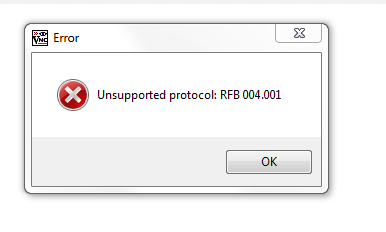
Unsupported protocol: RFB 004.001

Wednesday, February 27th, 2013

I had user who reported VNC didn’t work and he was receiving the following error:

Image

After looking the system over; I noticed both tightvnc and realvnc were installed and set with the server option.

Realvnc was removed and the most current version of tightvnc was installed. The error went away and use was restored.

The project file ‘ ‘ has been renamed or is no longer in the solution.

Friday, February 22nd, 2013

After an upgrade to Visual Studio 2012, a user reported this error while trying to build a project:

The project file ‘ ‘ has been renamed or is no longer in the solution.

It turns out VS2012 is a little more strict about missing references. Go through and clean them up and the build will work.

There was a forum note on MSDN as well.

Visual Studio 2012 hangs at splash page

Monday, February 18th, 2013

Migration to Visual Studio 2012 has started. We had a couple incidents of the upgrade hanging at the splash page.

Visual Studio 2012 Splash Screen

The previous version installed was 2010. Nothing obvious and there were no errors.

After digging around, it turned out to be the video drivers. They were upgraded and the install continued.

Maximum number of cpus supported by Windows 7

Monday, February 18th, 2013

I do get this question from time to time.

Windows 7 Home edition can support one physical CPU. Cores are dependent on the processor.

Windows 7 Professional, Enterprise and Ultimate can support two physical CPUs. Cores are dependent on the processor.

The better way to think of it it as sockets. Windows 7 Pro can support 2 sockets with quad 4 cores. This would be 8 cores.

Event filter with query “SELECT * FROM __InstanceModificationEvent WITHIN 60

Monday, February 11th, 2013

I happen to notice this error would pop up on the application log every time a windows 2008 R2 server was booted:

Event filter with query “SELECT * FROM __InstanceModificationEvent WITHIN 60 WHERE TargetInstance ISA “Win32_Processor” AND TargetInstance.LoadPercentage > 99″ could not be reactivated in namespace “//./root/CIMV2” because of error 0x80041003. Events cannot be delivered through this filter until the problem is corrected.

It didn’t seem to be bothering anything but why have an error if you can eliminate it. I did some checking around Microsoft and found this.

Normally, I like to review and run the script.  I had other things to handle so I let the fix-it routine handle it.  A quick reboot and there was no message logged.


What is the maximum for windows…..

Friday, February 8th, 2013

Every once in awhile the question of what is the maximum memory for a windows operating system is raised. The 32 bit versions are easy but the 64 bit versions can have different sizes depending on the OS.

Microsoft does give a list.

set-executionpolicy unrestricted is denied.

Sunday, February 3rd, 2013

One of the steps we have for setting up a new LSF server is to run a powershell script which does a survey of the machine. The first step is to un-restrict the execution policy via this command:

set-executionpolicy unrestricted

The command was entered and it returned this nice little error:

Execution Policy Change
The execution policy helps protect you from scripts that you do not 
trust. Changing the execution policy might expose you to the security 
risks described in the about_Execution_Policies help topic. Do you 
want to change the execution policy?

[Y] Yes  [N] No  [S] Suspend  [?] Help (default is "Y"): y
Set-ExecutionPolicy : Access to the registry key 'HKEY_LOCAL_MACHINE\
SOFTWARE\Microsoft\PowerShell\1\ShellIds\Microsoft .PowerShell' is 
denied.

At line:1 char:20
+ set-executionpolicy <<<<  unrestricted
    + CategoryInfo          : NotSpecified: (:) [Set-ExecutionPolicy], 
      UnauthorizedAccessException
    + FullyQualifiedErrorId : System.UnauthorizedAccessException,
      Microsoft.PowerShell.Commands.SetExecutionPolicyCommand

Rather odd since all security was correct.

Two obvious ideas are to upgrade powershell or reinstall it. Neither was an option is this situation.

I did a quick look around Microsoft and found this.

I decided to try the registry option and added the login.

* Run: regedt32
* Goto HKEY_LOCAL_MACHINE\SOFTWARE\Microsoft\PowerShell
* Right-Click > Permissions
* Select, and add your account, grant it “Full Control” privileges
I re-entered the set-executionpolicy command and this time it worked.


Could not start PsExec service on host

Saturday, February 2nd, 2013

I have a script which uses psexec to check a few things on new servers. I ran the script and received the following message.

Couldn’t access *hosta*:
The handle is invalid.
Could not start PsExec service on *hosta*:
Access is denied.
Starting PsExec service on *hosta*…

Rather an odd message because another server with the same configuration didn’t have a problem. I checked a few things but did not find anything obvious. Server pings, remote desktop works, etc., etc…..

From the other box I tried to see if I could remote access the C drive via \\hosta\C$ and received this error:

\\hosta\C$

Logon Failure: The target account name is incorrect

The AD account looked ok but when I checked the host; I found a typo.  Instead of *hosta* there was *hosa* (obviously not the real name but you get the idea).

I deleted the domain account and simply renamed the server.  The domain prompted for an admin level account to do this and rebooted.

Don’t forget to move the host to the proper AD group if you use them.

Moral of the story: DNS/AD is both a friend and enemy. DNS pointed to the correct server but simple things would not work while other things like remote desktop did.  Well? Only because a previous problem prompted for a change in the negotiation level of RD.

It’s funny but I look back to my first AD design course and I remember the teacher repeating most AD problems are DNS related.

This could be caused by an outdated entry in the DNS cache.

Saturday, February 2nd, 2013

I was setting up a new server and when it came time to test a few things; I received this nice message when I tried Remote Desktop:

The connection cannot be completed because the remote computer 
that was reached is not the one you specified. This could be caused
by an outdated entry in the DNS cache. Try using the IP address of 
the computer instead of the name.

I checked the cache and DNS and found it was in order. Remote desktop would work with the IP address.

This was one of two machines with the same setup and the configuration matched the other machine. I checked the Microsoft site and found this.

All you need to do is:

  1. Start > Administrative Tools > Remote Desktop Services > Remote Desktop Session Host Configuration.
  2. Look under Connections and Right-click the RDP listener (Connection name is RDP-Tcp) and select properties.
  3. Look in the security box where you should see the security layer is set to negotiate.
  4. Change it to RDP Security Layer via the drop down button.
  5. Click OK and close the Remote Desktop Session Host Configuration.

After that; Remote Desktop by hostname works.

I can’t explain why this happened on one of two identically configured systems. I could go back and hunt for a reason if I had time which I never do of course….

*update*

Well now. While working on another issue; I found the problem. The hostname was misspelled on the host. DNS and AD managed to give functionality but other things like simply mounting the C drive \\host\C$ failed giving the error “The target account name is incorrect” A quick delete of the domain record, a reboot and the problem is solved.